

I want to be up front: this is not an article about whether or not can you, the reader, replace your laptop with a computer. This is about me, the author. Can I replace my laptop with an iPad Pro? I can save you some time and just let you know the answer right now. The answer is no, it cannot, in its current state, replace my laptop. This post may be updated later with a new iOS version (iPad OS 16 is coming soon, which will absolutely get it closer to a laptop) but in the current state, that is with iOS version 15.5, I cannot fully replace my laptop yet.
Now that this is out of the way, I’ll break down exactly why I can’t replace my laptop fully. I’ll break it down into the sections of what I use my laptop for, and there’s a good chance a lot of these sections will be relevant to you. I’ll score each section to let you know where it can take over, where it falls short, or where I can just get by.
I bought my iPad Pro (M1, 11 inch), 45 days ago. At one point I tried to completely replace my laptop and I just couldn’t. I would need the answer to each section below to be an astounding “yes” in order to fully transition.

Here are the sections, feel free to jump to the pertinent ones. These are listed in no particular order other than what came to mind. Click on each link here to jump to the desired section.
- Gaming
- Web Design, Blogging, and SEO
- Web Browsing, News, and Social Media
- Media Consumption
- Photo Editing and Drawing
- Spreadsheets
- Cloud storage
- Taking Notes
- Conclusion
Let’s start with the easiest subject. Email. Can I fully do email from my iPad, whereas before I used my laptop. The answer is an absolute yes. There are so many great email applications available, including the one built in to the iPad. Apple’s Mail app is wonderful, but I use an app called “Canary“.
I made the $20 purchase because Canary has so many added features over Apple’s Mail app, but you may not need to. I love the added features: encrypted email, read receipts, easy 1 click uninstalls, and an incredible level of customization.

There are a ton of apps for email on the app store, many of which can check your email. I went with Canary for my own reasons, I will write an in depth review later. The point is, you can choose whichever email application you feel is best for your situation. I will say though, make sure that your email stays private. Canary mail doesn’t analyze your email which is ultimately what I was looking for.
The iPad handles your basic email no matter what app you use. Most of us just use our email for basic communication with your family and friends, receiving newsletters or offers from retailers, etc.
Those topics being said, it is quite possible that email on an iPad won’t meet your needs if you’re receiving attachments. Most attachments are fine. PDF’s and images are the most common, and if that’s what you’re getting, you’re golden no matter which app you’re using. Some examples of attachments that could be troublesome: very in-depth spreadsheets, apps (such as windows or Mac OS apps), or simply emails which contain tasks that can’t be met on your iPad.
All in, I’m very happy with email on the iPad.
Email Score: 9/10
Gaming
This one is near and dear to my heart. I own a Windows 10 gaming laptop. I also own a 2015 Macbook Pro that I use for almost anything other than gaming. I hate that I can’t really game on the Macbook, so I switch back and forth. So, can the iPad handle gaming?
This is a very touchy subject overall. Can the laptop game? Absolutely. There is a massive App Store available, there’s the Apple Arcade, a subscription service which gives access to hundreds of ad-free full games, and the iPad itself is quite powerful.
For me, the answer is no. It cannot replace my needs for gaming. I have GeForce Now. I have XBOX Gamepass Ultimate. Both of these give access to a great selection of full games on the iPad, playable through the browser. However, neither of these give access to my full gaming library on Steam, Epic, and other stores.
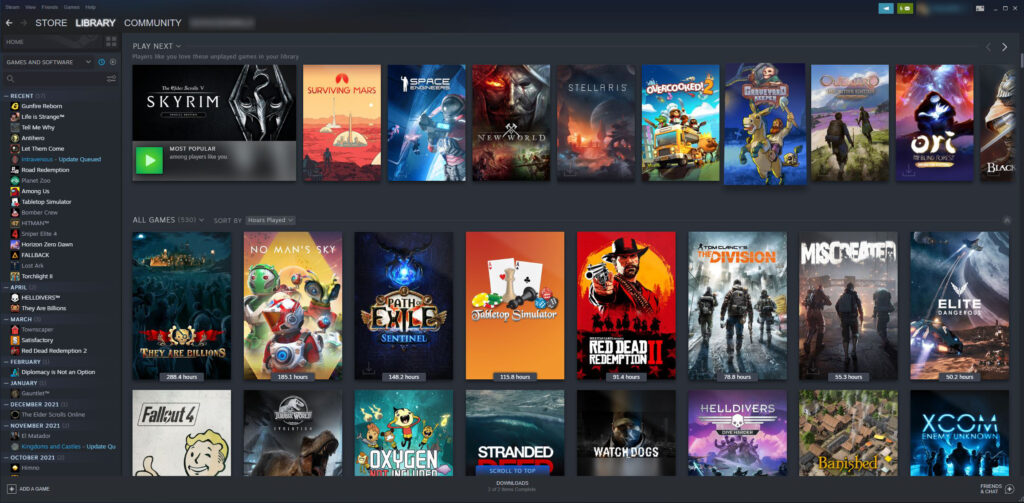
I’ve been buying games that are available on Steam for many years. Steam is the largest PC gaming platform in the world. There are others, and I have games on Epic, GOG, and a few others as well. For me, being able to play ALL of my games is the only way I would be able to say that an iPad could replace my games.
Now, this all being said, again, Apple has a great app store with decent games. The problem for me, is that they’re mainly geared at the mobile game style, where they’re typically low quality games with in app purchases. There are a growing handful of games available on the App Store which are full games, typically ports from PC games, such as the incredible Northgard. However, most games available on the App Store are older ports, such as Knights of the Old Republic (released in 2003) or Baldur’s Gate (1998).
Gaming Score: 3/10
I want to give this one a postscript: if you do not already have a game library on Steam or Epic, this could absolutely work for you! If I didn’t enjoy playing games on my PC already, there is a good chance that I could start gaming just on the iPad. I could buy games specifically for Steam which are playable on GeForce Now, I could play games exclusively on Xbox’s cloud service, or I could play games on a gaming console such as an XBOX or a Playstation instead. However, I do not do any of these, and I’m not willing to sacrifice my game library.
Web Design, Blogging, and SEO
I do a bit of Web Design and SEO as a side job. I typically build WordPress sites and customize them to meet the business needs. I optimize their sites, otherwise known as “Search Engine Optimization” so that search engines can find them better based on the intended searches.
I’m going to jump in and say that I have hardly even attempted this on my iPad. I just can’t. I need a bigger screen, 11″ screen isn’t nearly large enough to design sites. For design, it is possible. You can arrange the blocks on pages, you can do all of the design in photo editing apps, etc. This all being said – I just need a larger screen.
It is theoretically possible to use nothing but your iPad for designing your website. I just won’t until there’s better external monitor support (which is coming later this year, so I’ll update this once it’s out of beta!).
Now, onto the SEO. I don’t do much link building. I do the on-page stuff. All of this is done through the use of different websites that analyze, make suggestions for optimizations based on algorithms, and keyword research. All of this is 100% doable on an iPad. The Safari browser (or any of the other browsers) can handle all of these websites which help with SEO.
If all you’re doing is writing articles and not doing the website design, such as if you’re a blogger, I’d say this is also 100% doable on an iPad.
So, can you do web design on an iPad?
Web Design Score: 5/10
SEO Score: 8/10
Blogging Score: 8/10
Web Browsing, News, and Social Media
The iPad Pro (or any iPad) is an incredible web browsing and social media device. This is an area where I prefer the iPad over a computer. I don’t do much social media. While I do have a Facebook and an Instagram account, I don’t use them. I use Reddit and Twitter and I browse the internet. I use Apple News and Washington Post apps for my news consumption, and I love being able to do this from anywhere, rather than a bulky device sitting on my lap or desk. I think the iPad is a perfect device for this type of consumption.
I’m not even going to go much into detail here. I think this device is perfect.
Web Browsing Score: 10/10
News Score: 10/10
Social Media Score: 10/10
Media Consumption
Just like the last category, I think media consumption is great on an iPad. Especially the iPad Pro, with it’s wonderful screen and four speakers. I don’t do much media consumption on my laptop. I either do my media consumption on my TV (mostly) or my iPad.
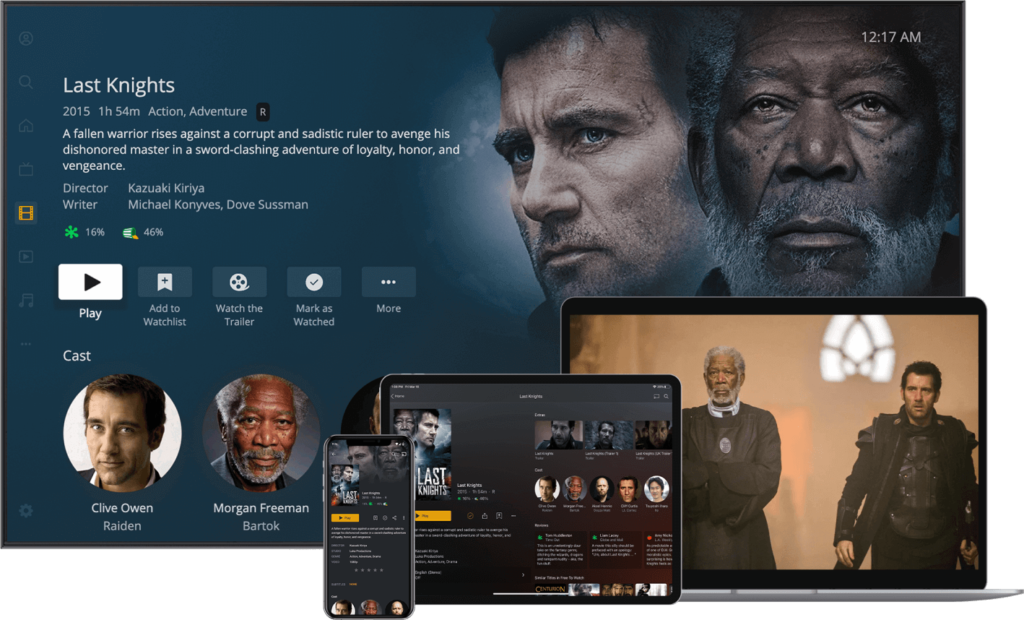
When I travel for my real job, I always load my iPad with media. Typically I use Plex, Disney Plus, Netflix, or Discovery plus, all of which can download locally for offline so if you’re on a flight, you can still watch. If you’re a laptop media watcher, I think an iPad could absolutely work for you.
Media Score: 10/10
P.S. I do watch most of my media on a TV. I’m not rating this vs a TV, I’m rating it based on switching from a laptop.
Photo Editing and Drawing
I’m not a professional graphic designer, so I’ll start with that. So can I do photo editing on my iPad? The very easy answer here is absolutely. I bought Affinity Photo from the app store, it’s a wonderful Photoshop-like application that can do 99.99999% of what your normal, average, non-graphic-designer types like me need.

I can grab photos that I’ve taken from my phone and I can adjust color levels, I can overlay text, I can crop, or I can do a lot, lot more than I’ll ever need with this great app. I even used this app to create my free wallpapers I gave away recently.
The beauty of Affinity photo, or rather, one of the beautiful things about it, is that it’s just a one-time purchase of $20 and then you own it forever. It can import from Photoshop if you’re used to using it, and it’s just as powerful to the non power-user like myself. It truly does everything you’ll need.
I’ve also got Affinity Photo on my laptop, and to me, I can’t really find any differences. It feels like the full suite, and it runs incredibly quickly on the iPad pro.
You can also take things to the next level. I also use Procreate for sketching. This is something I can’t do on any laptop without a special accessory like a Wacom or similar. Procreate is spectacular. It has pressure levels, it feels wonderful to draw. I have watched numerous tutorials on drawing on the iPad and it’s what everyone seems to use. I’m following tutorials so I can go from my stick figure drawings I do now to becoming a full on artist.

I love how easy it is to pick up and use. I am terrible at drawing (this screenshot is from their website, it is absolutely not something I did). The app works magically with the Apple Pencil. It even works great with one of those knock-off $20 pencils (but there’s no pressure sensitivity). You can even get a screen protector to simulate the feel of real paper if that helps! If you’re an artist, or if you’re even just wanting to learn, I’d 100% recommend grabbing this app.
Photo Editing Score: 10/10
Drawing Score: 10/10
Spreadsheets
I do a lot of spreadsheets. I like to go hiking, so I have spreadsheets with checklists, item weights, and more. I use spreadsheets to keep track of gifts that I’ve purchased for Christmas. I use spreadsheets to analyze websites and competition for SEO factors. I use spreadsheets all the time outside of my day job (I use them all day long at my day job too, but that’s outside the scope of this article).
There are really three good spreadsheet options on the iPad: Apple’s own Numbers app, Microsoft Excel, and the web-based Google Sheets. Here’s my problem. Since I primarily use a Windows computer, I can’t use Numbers on my PC. I don’t pay for an Office 365 subscription, so I don’t have access to Excel on my computer or iPad, and Google sheets works, but is fairly clunky on an iPad. I use OpenOffice on my PC which isn’t available on iPad.

This all being said, Numbers is fantastic on the iPad. It allows you to share and collaborate with others, for example, sharing Christmas lists.
Now, I’m sure if I had an Office 365 subscription so I could sync across all computers, my score would be higher. I used to have it on my non-pro iPad, and it worked reasonably well. You still are sacrificing advanced features such as macros, but for on-the-go spreadsheets it is fantastic.
Because I’m talking about compromises, I’m going to say that doing spreadsheets on an iPad pro is less than ideal.
Spreadsheets Score: 6/10
Cloud Storage
I love cloud storage. It allows access to my files anytime, anywhere. I can upload files from my PC, I can nearly instantly get access to them on my iPad through many different methods. I currently use a few different things: I have a personally hosted Nextcloud instance (an open-source version of Google Drive plus more), I use pCloud (I bought a 2TB lifetime subscription on one of their sales recently) and I have iCloud plus. In reality, I have more storage than I’ll ever need.

The beauty here is that none of these are dependent on a PC in any way. I can have access to anything I want, I can share the files with others, and I don’t need to worry about the storage space on my iPad pro filling up. Cloud storage on an iPad Pro is the absolute best way to store anything with your iPad. I bought the 128GB model, so all of that storage gets to go toward app storage space, not photo or document storage.
The beauty is that all of these apps offer “offline access” in some capacity as well, so that means if you’re wanting to have access to specific files while you’re on an airplane, you can do so.
My favorite is Apple’s own iCloud storage. I pay for the 2TB plan for my family, which automatically uploads images as they’re taken so I don’t have to worry about ever losing photos again.
In my opinion, cloud storage is an absolute must if you own an iPad (or any phone for that matter).
Cloud Storage Score: 10/10
Taking Notes
Here’s something where an iPad isn’t just good at, but it’s far better at than any PC. I absolutely love the iPad for taking notes. I’m currently testing out a number of different ways of doing so, and I’m in love with the pencil support (or even a 3rd party cheap one).
There are a lot of people like me out there – we take handwritten notes even in today’s digital age. I’ve tried the Rocketbook, I’ve tried Genius Scan Pro, and I’ve tried other apps which just take photos of my handwritten notes. But none of these work as well, in my opinion, for taking notes on an iPad, than some of the apps that are designed for them.

Goodnotes, Notability, Nebo, and Apple’s own Notes app are all very different and offer a great deal of flexibility for how you’d like to take your notes. I personally am evaluating between Goodnotes and Nebo (I bought the full versions of each) and they both have their strengths and weaknesses. I love how Goodnotes allows you to import any PDF and you can continue to add additional pages. You can use templates, so if there are things you use daily such as a daily calendar and to-do list, you can simply continue to duplicate them. Nebo has PDF support but it’s only to annotate. Then, on the other hand, nothing can beat Nebo’s handwriting conversion, whereas Goodnotes can convert but it is only in a pop up window that converts a block of text at a time.
Apple’s Notes gets the leg up in that you can just grab your Apple Pencil and tap on the screen, which will create a new Quick note.
All of this being said, if you take your notes by typing, as long as you have a good keyboard (I use the Logitech Combo Touch and love it), any note taking app that you already use will be great. I tend to keep everything in Evernote, and I love the experience on the iPad.
Taking Notes Score: 10/10
Conclusion
As things stand right now, I’m going to just come out and say it: no, the iPad cannot replace my laptop. It can come pretty close, but it can’t do it. I think it’ll get very close with the next iOS version, with proper external monitor support and I’ll update this review then. Until that happens though, I’m going to keep this review to the current state of the iPad Pro.
Now, my results may vary. I think if I didn’t have a large game library already on my PC, I could make some easy concessions and use nothing but the iPad for my personal life. My company provides me with a laptop which I use for my day job, and I keep these reviews on my website to my personal views rather than professional.
Additionally, if I didn’t do web design and SEO, I think an iPad would be a great device. So if you came here wondering if an iPad can replace your laptop I will leave you with this: it truly depends what you’re doing with your laptop. If your laptop is used for email, watching videos, browsing the web and social media, and playing some light games – the iPad pro can absolutely replace your laptop. If, however, you do more with your laptop like I do, I think only time will make this possible.